API Keys
Why Exchange API Keys are needed?#
We ask participants to provide read-only API keys so we can securely access the information needed to verify their participation — this includes recent trades, balances, and deposit address information. These permissions are strictly view-only and do not allow withdrawals, transfers, trading, or any action that could affect your funds. You remain in full control and can adjust or revoke the API key permissions at any time directly from your exchange settings.
Exchange Account prerequisites#
Before you create and connect API keys, please make sure that all prerequisites are met:
- you use Live Account, not Demo or Sandbox Account
- you have a deposit address for
ETHon its native network (if not - create one)
How to create API Keys#
- Log in to your MEXC account
- Click on the “profile icon” on the top right corner
-
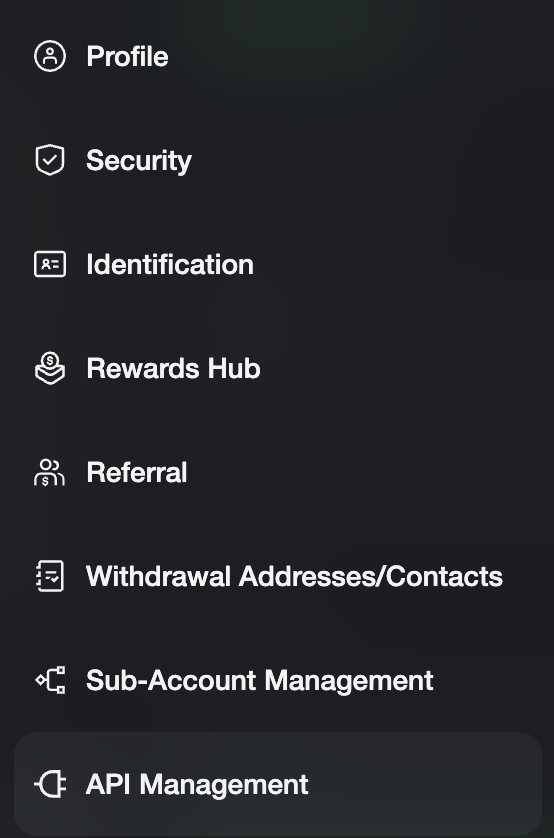
Then click on “API Management”:
-
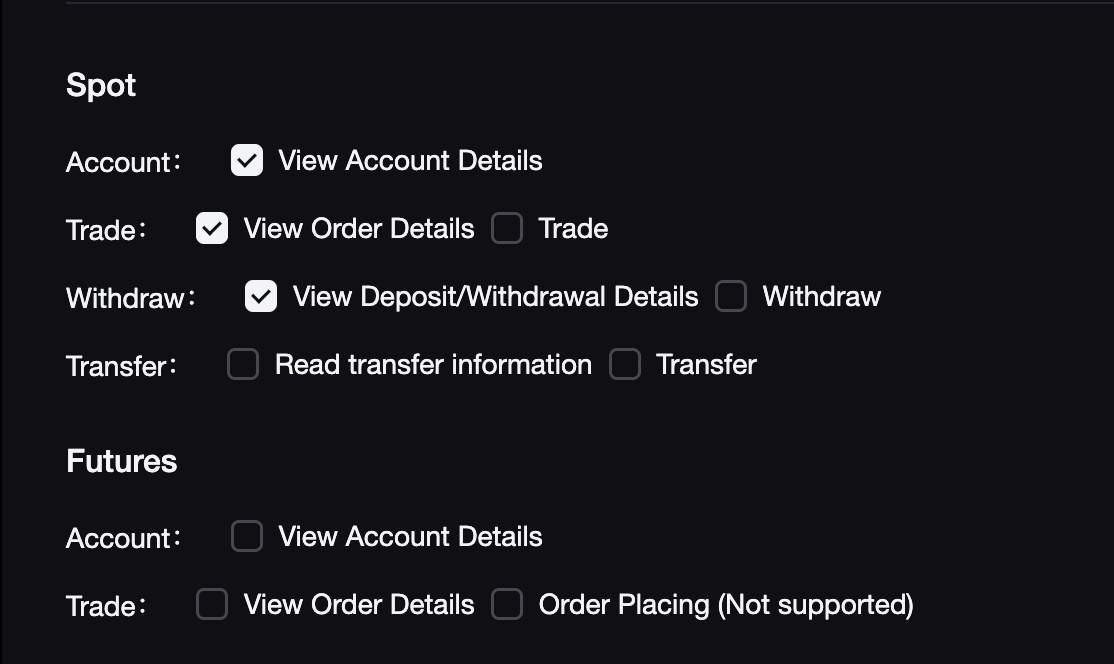
To create READ-ONLY API key select only the permissions as shown below:
Warning
Be aware that the Secret Key is only displayed once. It cannot be retrieved after it is lost. Please keep or save it properly.
- Log in to your Gate account
- Click on the “profile icon” in the top right corner
-
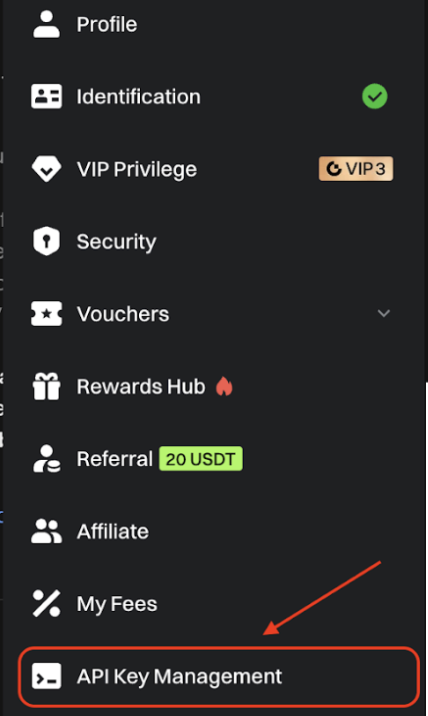
Then click on “API Key Management”:
-
Click on the "Create API Key" in the top right corner.
- In the following pop-up window click on "Trading Account"
-
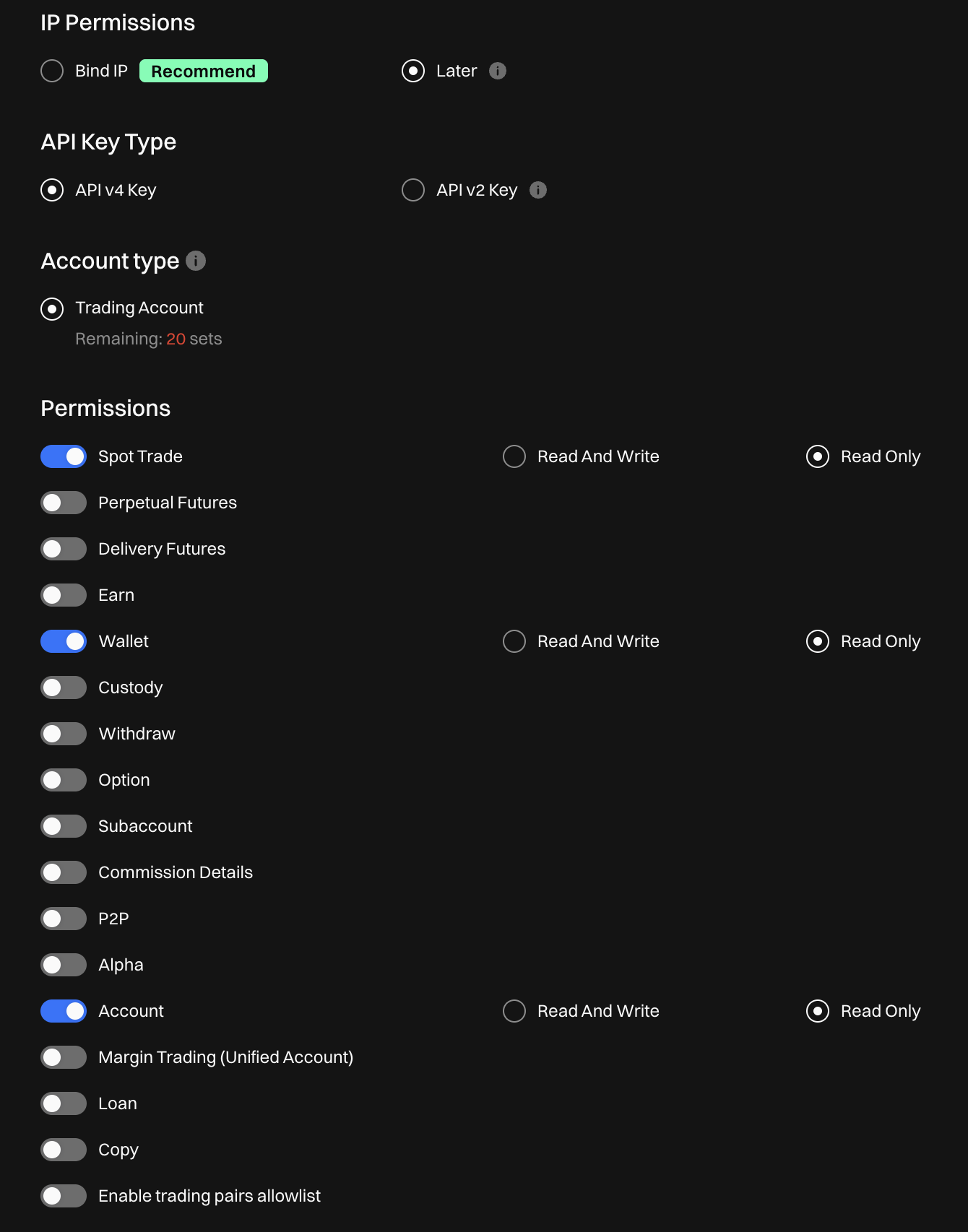
To create READ-ONLY API key select only the permissions as shown below:
Warning
Be aware that the Secret Key is only displayed once. It cannot be retrieved after it is lost. Please keep or save it properly.
- Log in to your XT account
- Click on the "profile icon" in the top right corner
-
Then click on "API Management"
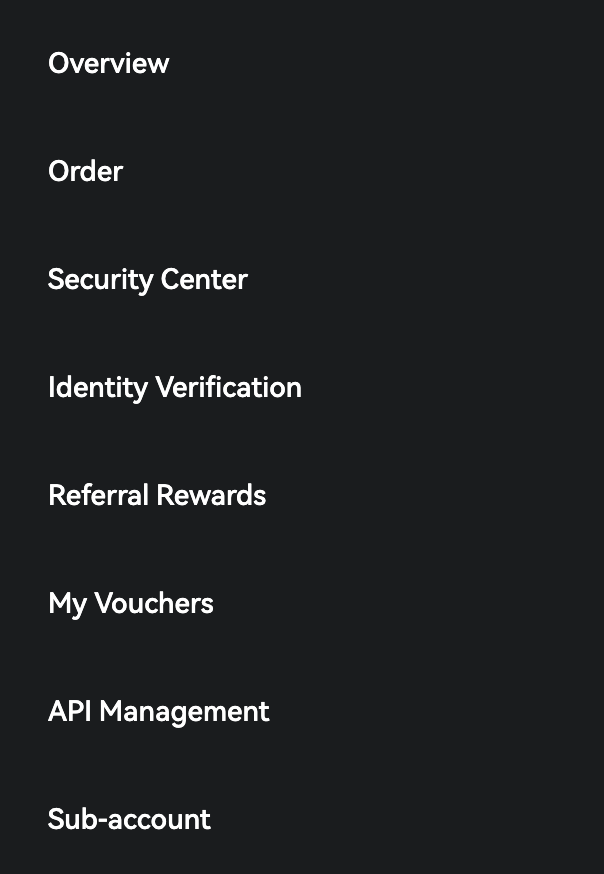
-
Select necessary permission as shown below and click "Confirm"
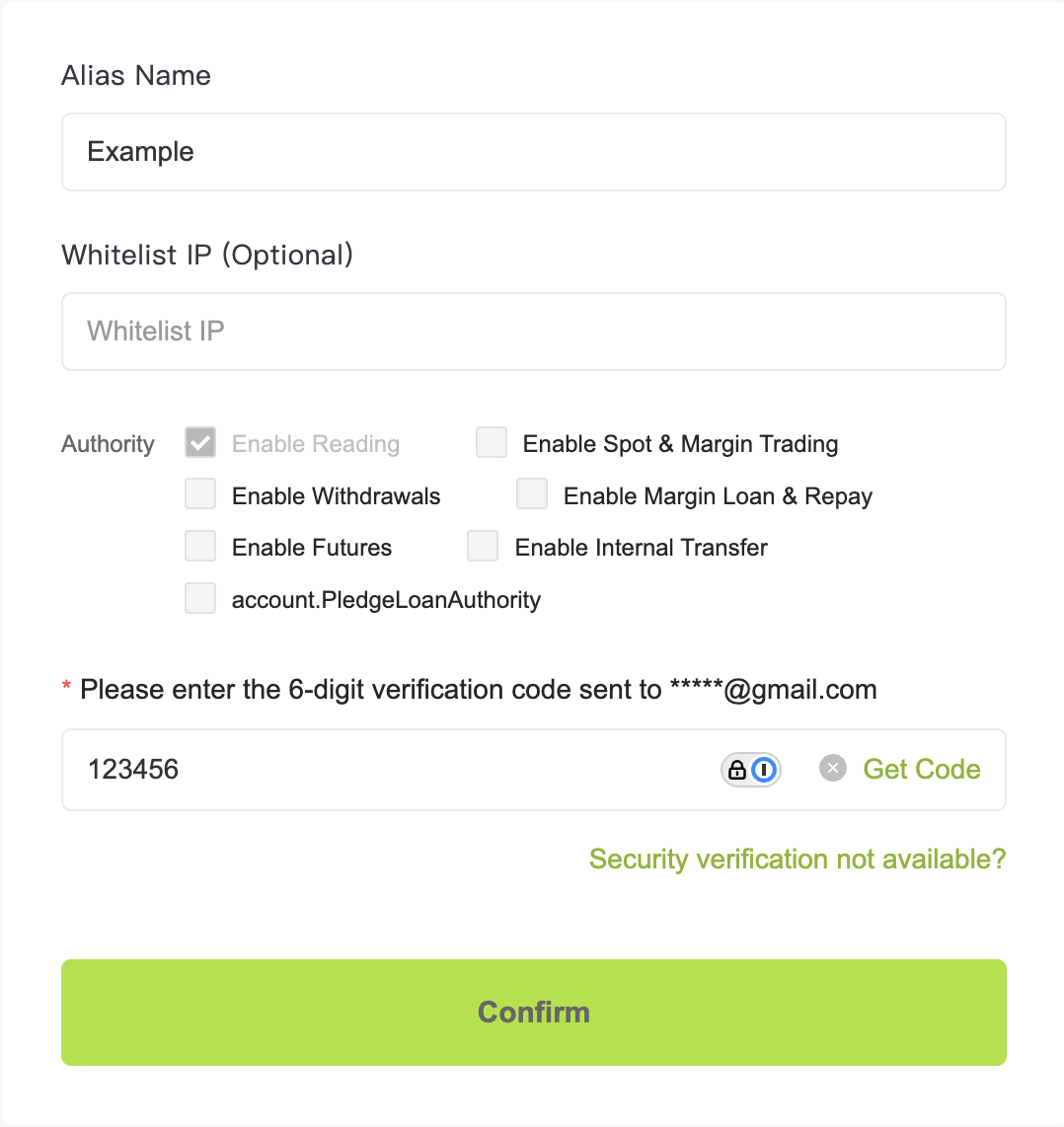
Warning
Be aware that the Secret Key is only displayed once. It cannot be retrieved after it is lost. Please keep or save it properly.
- Log in to your Bitmart account
- Click on the "profile icon" in the top right corner
-
Then click on "API Management"
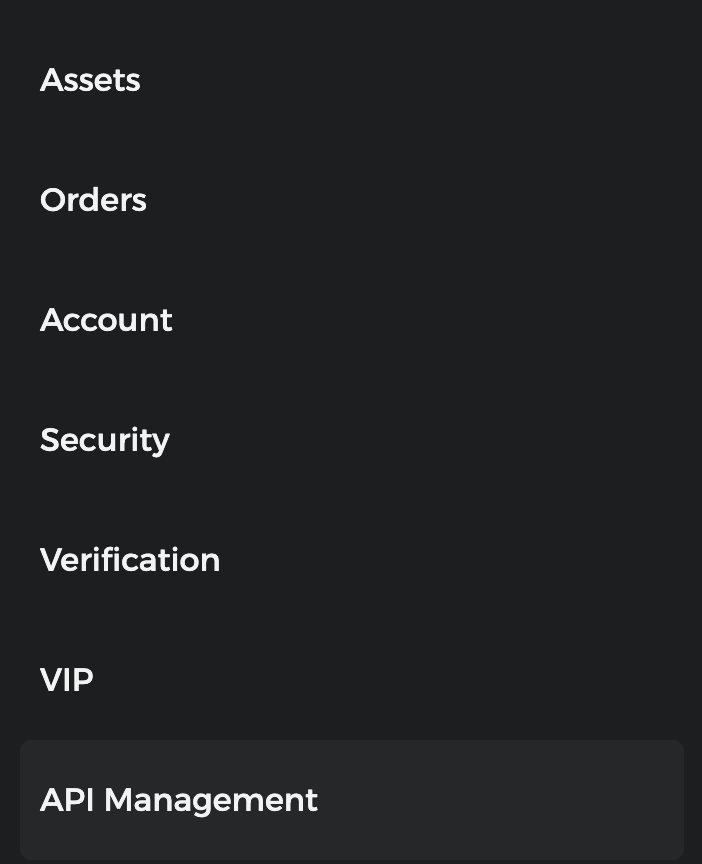
-
Choose the name for your API key (Memo), select necessary permission as shown below and click "Confirm"
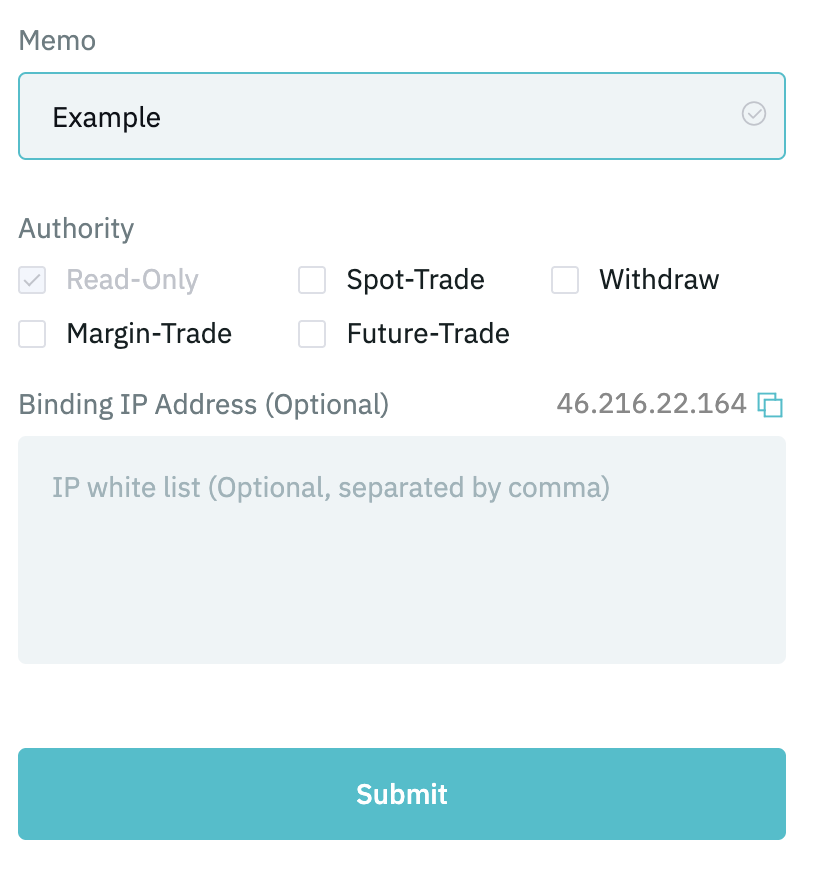
Warning
Be aware that the Secret Key is only displayed once. It cannot be retrieved after it is lost. Please keep or save it properly.
Info
To add Bitmart API key to HuFi you need to provide not only Access/Secret keys but also a Memo.
Info
Make sure that you have enabled Google Authenticator and added Asset PIN. Without that API creation will be unavailable.
- Log in to your BigONE account
- Click on the "profile icon" in the top right corner
-
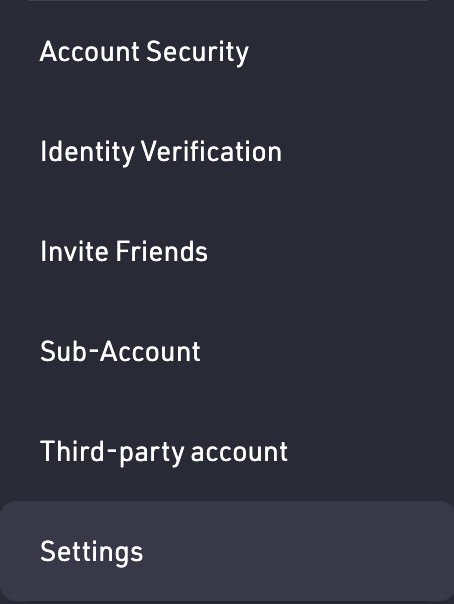
Then click on Settings
-
Click on "API Keys"
-
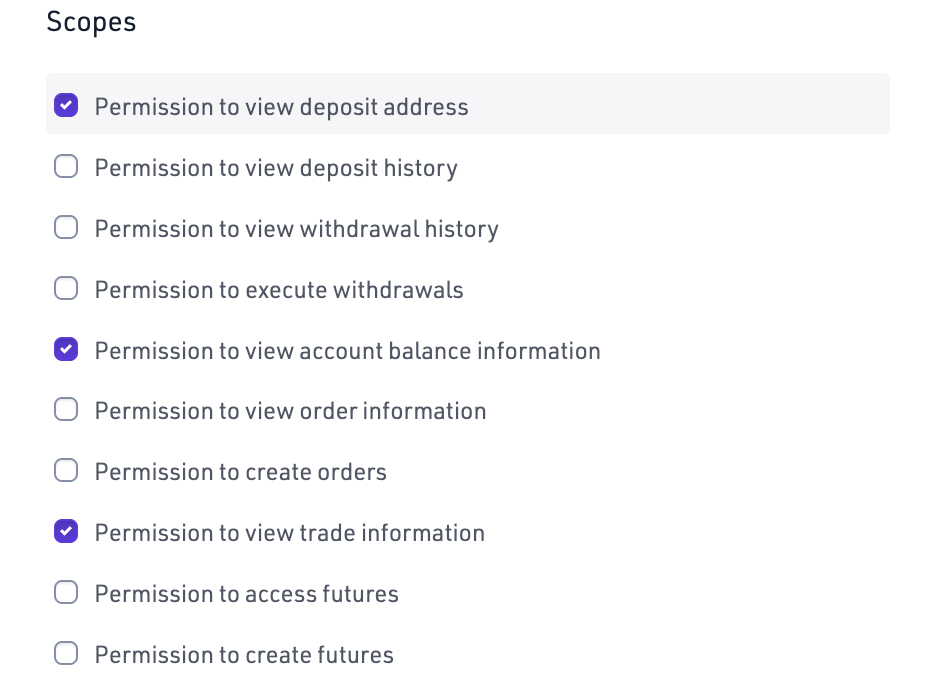
Select necessary permission as shown below and click "Next"
Warning
Be aware that the Secret Key is only displayed once. It cannot be retrieved after it is lost. Please keep or save it properly.
- Log in to your Kraken account
- Click on the "profile icon" in the top right corner
- Then click on Settings
- Select the API tab and click Create API key
-
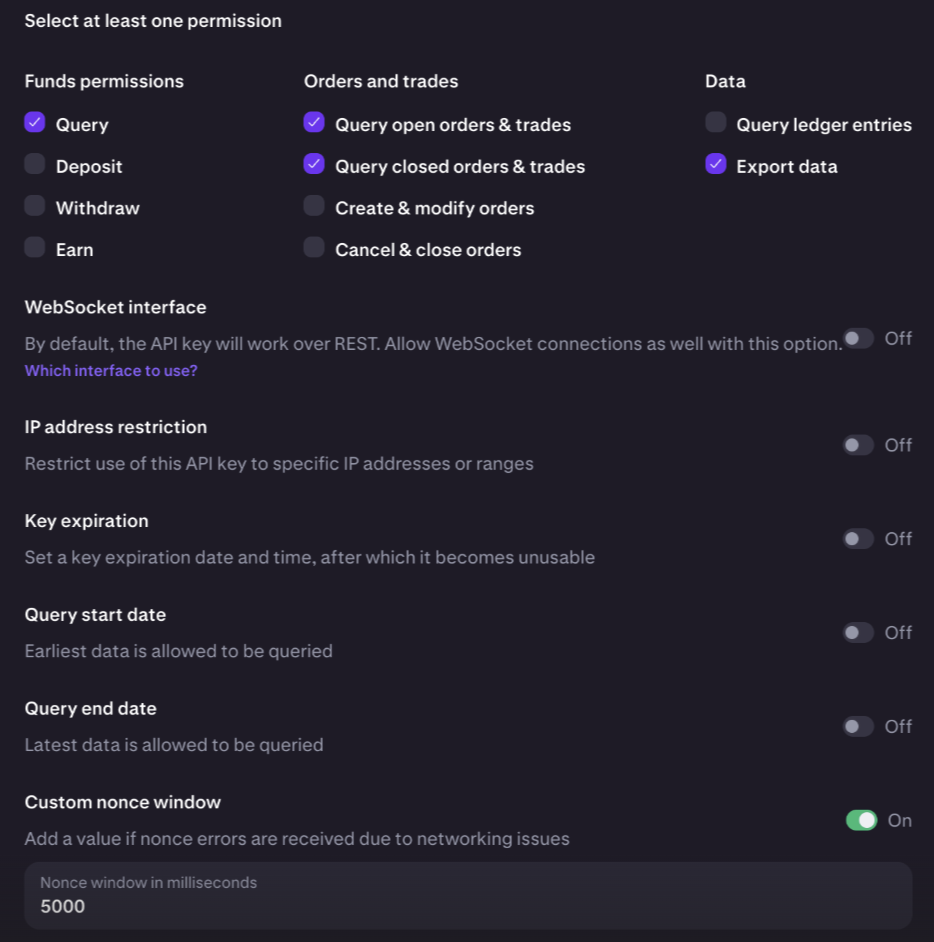
Select necessary permission and setup Custom nonce window as shown below and click "Generate key"
Warning
Be aware that the Private key is only displayed once. It cannot be retrieved after it is lost. Please keep or save it properly.
- Log in to your KuCoin account
- Click on the "profile icon" in the top right corner
-
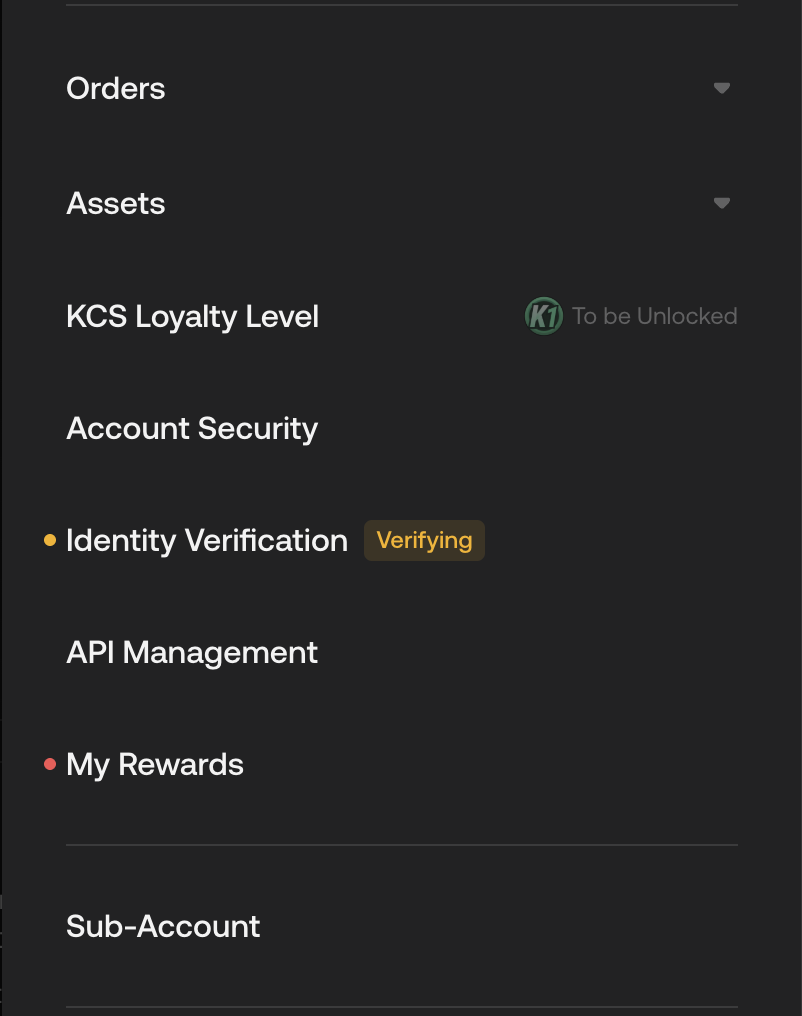
Then click on "API Management"
-
Click Create API button
-
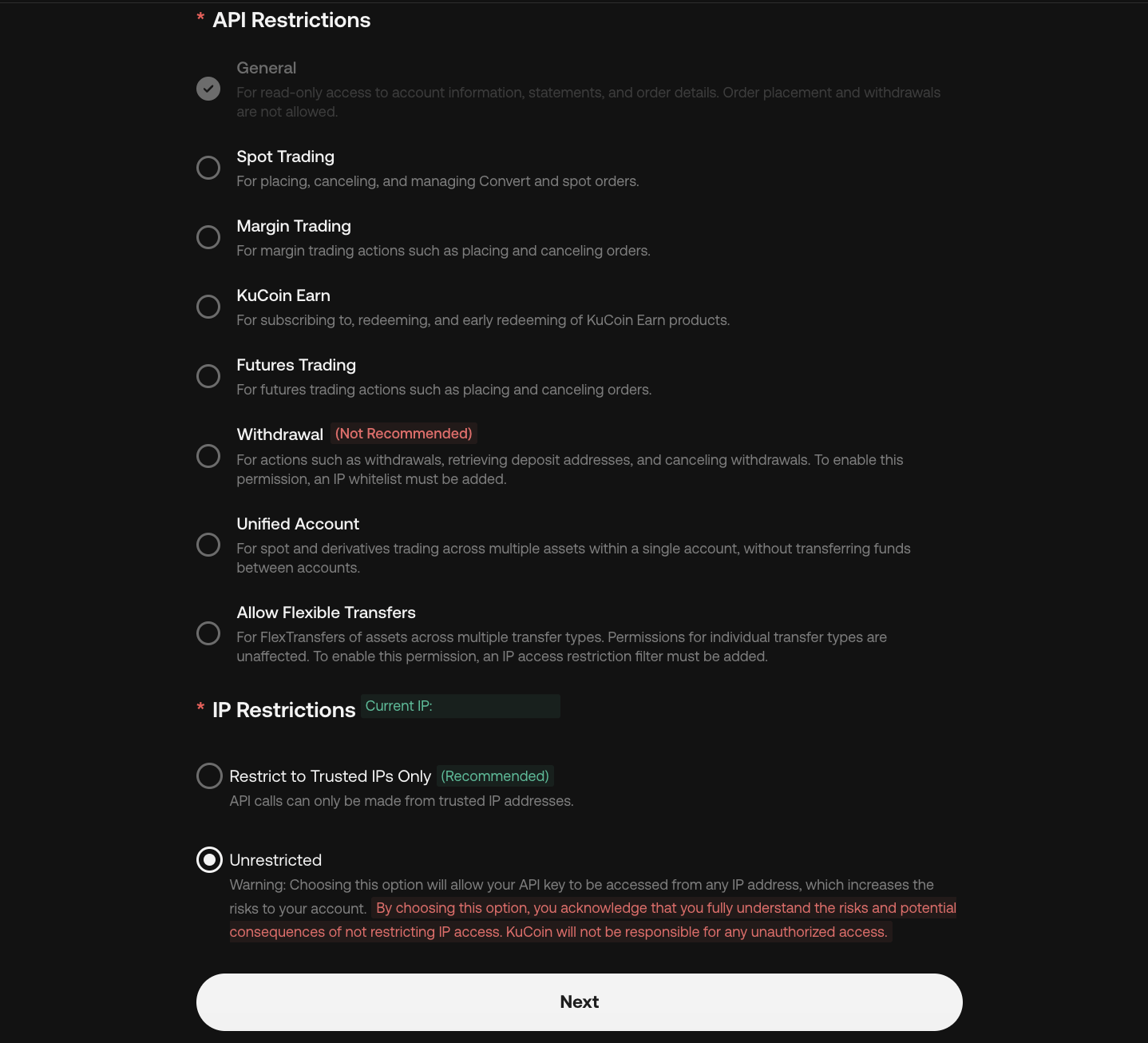
Choose the name for your API key (API Name) and Passphrase, select only "General" permission and no IP-restriction as shown below and click "Next"
Warning
Be aware that the Secret Key is only displayed once. It cannot be retrieved after it is lost. Please keep or save it properly.
Info
To add KuCoin API key to HuFi you need to provide not only Access/Secret keys but also a Passphrase.
Recommendations#
- Do not share your API keys with other partipants.
- Make sure that your API key is valid and not expired at all times. Platform checks validity upon adding but after that it's solely participant's responsibility to keep their API keys valid.
API Keys management#
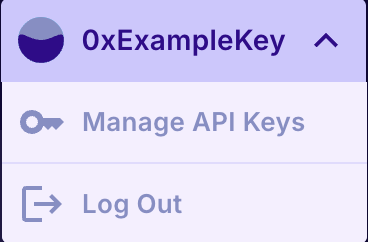
Click on your wallet address in the top right corner and choose Manage API keys. This is where all API keys for different exchanges are stored and managed.
-
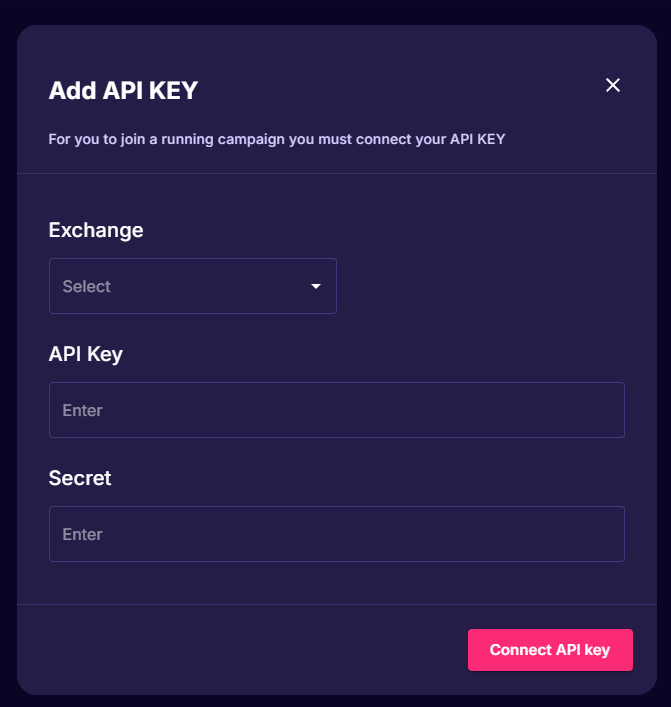
Click Add new key, select the exchange and paste the keys.
-
Click Connect API Key
- After adding keys, you can join campaigns running on that exchange.
Info
Please, note that we allow to have only 1 API key per exchange.
Info
Please, note that some exchanges (e.g. Bitmart, KuCoin) require additional information about your API key.
If your existing API key has exprired we strongly suggest you to edit the existing key instead of deleting it.
To do that, please click on the pencil icon next to the API key you want to alter and paste the new API key:

If you want to delete an existing API key, please click on the bin icon.
Warning
If you delete API key we will automatically disconnect you from any active campaign you are participating in.